Use Terrain with the testnet
The Pisco testnet is used for testing transactions on the Terra network.
Prerequisites
Create a test wallet
Open the Station browser extension and create a new wallet for testing purposes. It is recommended that you name this wallet "Pisco" or "testnet" so that it's easy to remember.
After creating a test wallet and storing the seed phrase, request funds from the testnet faucet in order to have tokens to carry out transactions on testnet.
Make sure you have your seed phrase available as you will need it to complete this tutorial.
Counter tutorial
After creating a test wallet, you are ready to use Terrain. This short tutorial walks you through setting up your project and creating a simple counter that increments upon request.
1. Scaffold your dApp
Scaffold your new application.
_3terrain new my_terra_dapp_3cd my_terra_dapp_3npm install
Project structure
Your scaffolded project will have the following structure.
_10._10├── contracts # The contracts' source code._10│ ├── my_terra_dapp_10│ └── ... # Add more contracts here._10├── frontend # The front-end application._10├── lib # Predefined functions for task and console._10├── tasks # Predefined tasks._10├── keys.terrain.js # Keys for signing transactions._10├── config.terrain.json # Config for connections and contract deployments._10└── refs.terrain.json # Deployed code and contract references.
2. Configure the testnet
Before deploying, you will need to supply your test wallet's mnemonic to Terrain so that it can use the wallet to carry out transactions. To do this, you'll need to modify keys.terrain.js in the generated project.
Modify the configuration and provide your seed phrase.
_6module.exports = {_6 pisco: {_6 mnemonic:_6 "PLACE_YOUR_PISCO_SEED_PHRASE_HERE",_6 },_6};
3. Deploy
To deploy the application, you can run the following command in your terminal.
_1terrain deploy my_terra_dapp --signer <your-test-wallet-name> --network testnet
The deploy command performs the following steps automatically.
- Builds the smart contract.
- Optimizes the smart contract.
- Uploads the smart contract to testnet.
- Instantiates the deployed smart contract.
If you get the following error, wait a few seconds and then try running the deploy command again.
_1CLIError: account sequence mismatch, expected 1, got 0: incorrect account sequence
3. Generate TypeScript client
Terrain 0.5.x and above includes the ability to automatically generate a TypeScript client based on your smart contract schema.
You can generate a client by running the following command in your terminal.
_1terrain contract:generateClient my_terra_dapp
The client will be generated in ./lib/clients and copied into the frontend directory.
4. Interact with the deployed contract
The template dApp comes with several predefined helpers in lib/index.js. You can use these to start interacting with your smart contract.
- Start the Terrain console.
_1terrain console --network testnet --signer <your-test-wallet-name>
- In the Terrain console, you can increment the counter by running the following command.
_1await lib.increment();
You can also get the current count.
_1await lib.getCountQuery();
- After incrementing once,
await lib.getCountQuery()should return a count of 1.
_1{ "count": 1 }
5. Front end scaffolding
When you scaffold a template app with Terrain, it will contain a simple front end.
-
In the Station Chrome extension, switch the network to
testnet. -
To use the front end, run the following commands.
_2cd frontend_2npm start
- With
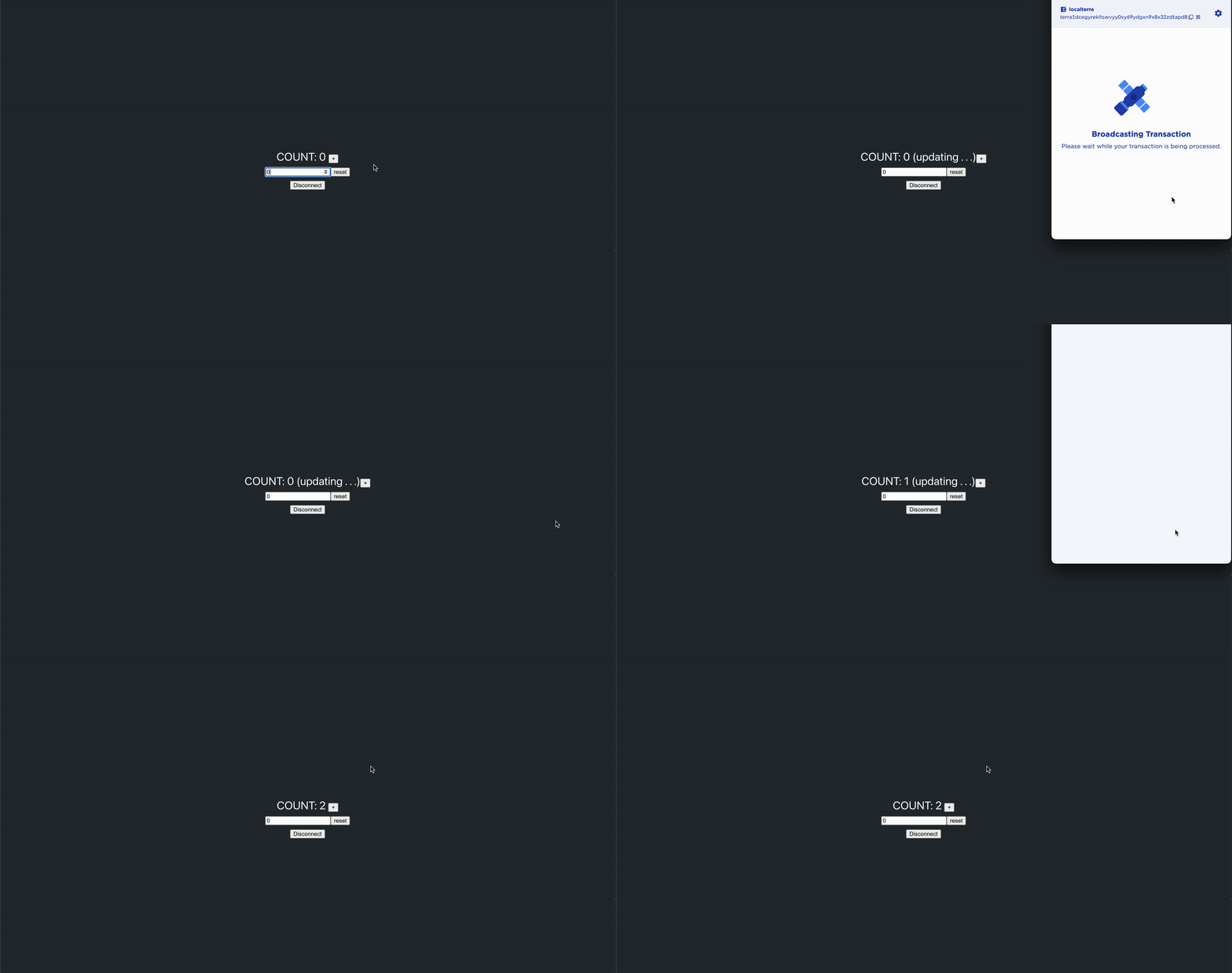
testnetselected in Station you can now increment and reset the counter from the front end.
Demo
Advanced usage
For more advanced use cases such as deploying to testnet or mainnet, read Terrain's readme.